
Lesson 4: New Opportunity Registration
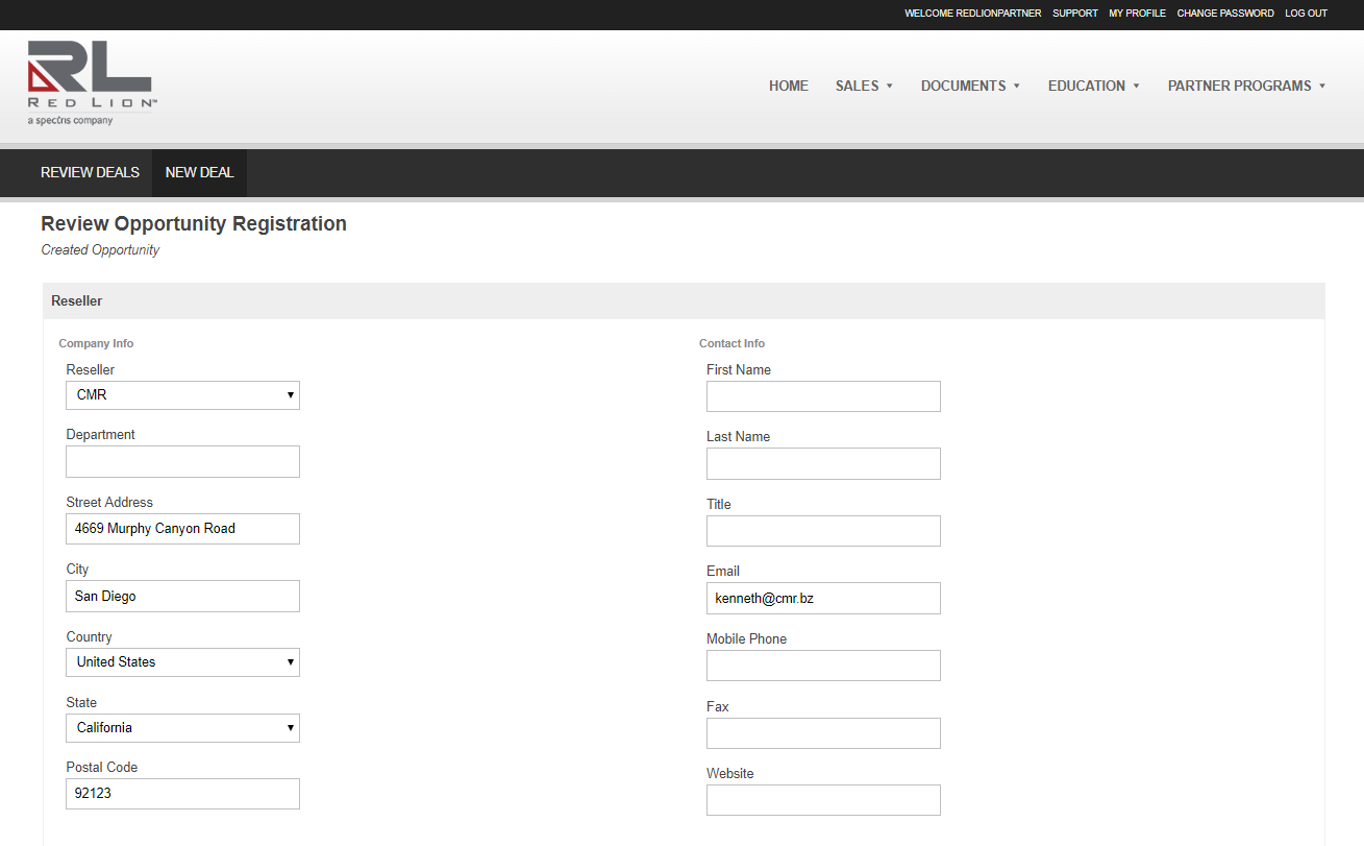
Next, you will see the registration information auto-populated in the Reseller section. Your information, which you entered on the My Profile page, will be auto-populated in the Reseller information.
You can also edit the contact information here.
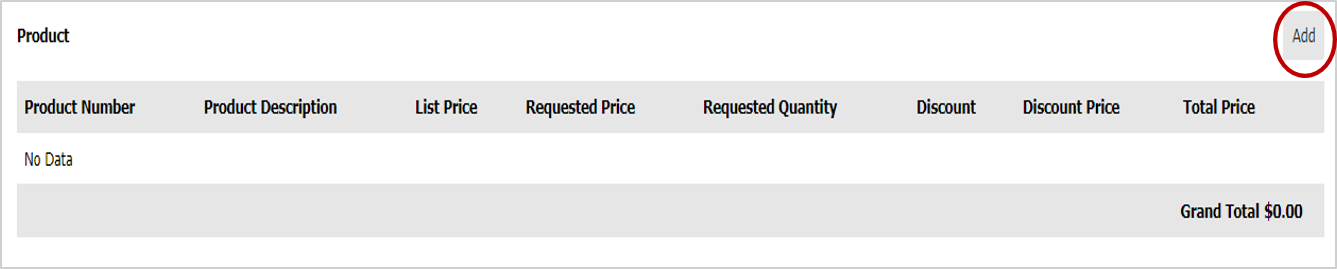
Next section, is the Product Information.
Click Add button to open a pop-up window with the Parts List.
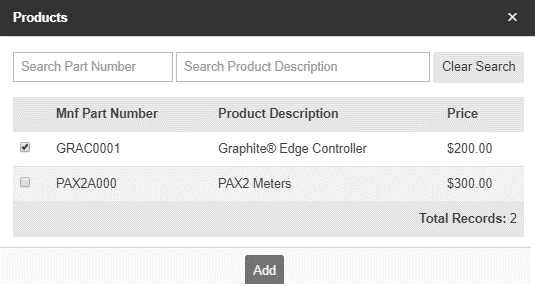
From here, you can search for the part at the top through Part Number or Product Description. You can also scroll down on the right to look for your part.
Once you have found the parts you are looking for, check the box on the left.
Then, click the Add button.
Once you have added the product you can input the Requested Quality. This will calculate the grand total for your registration.

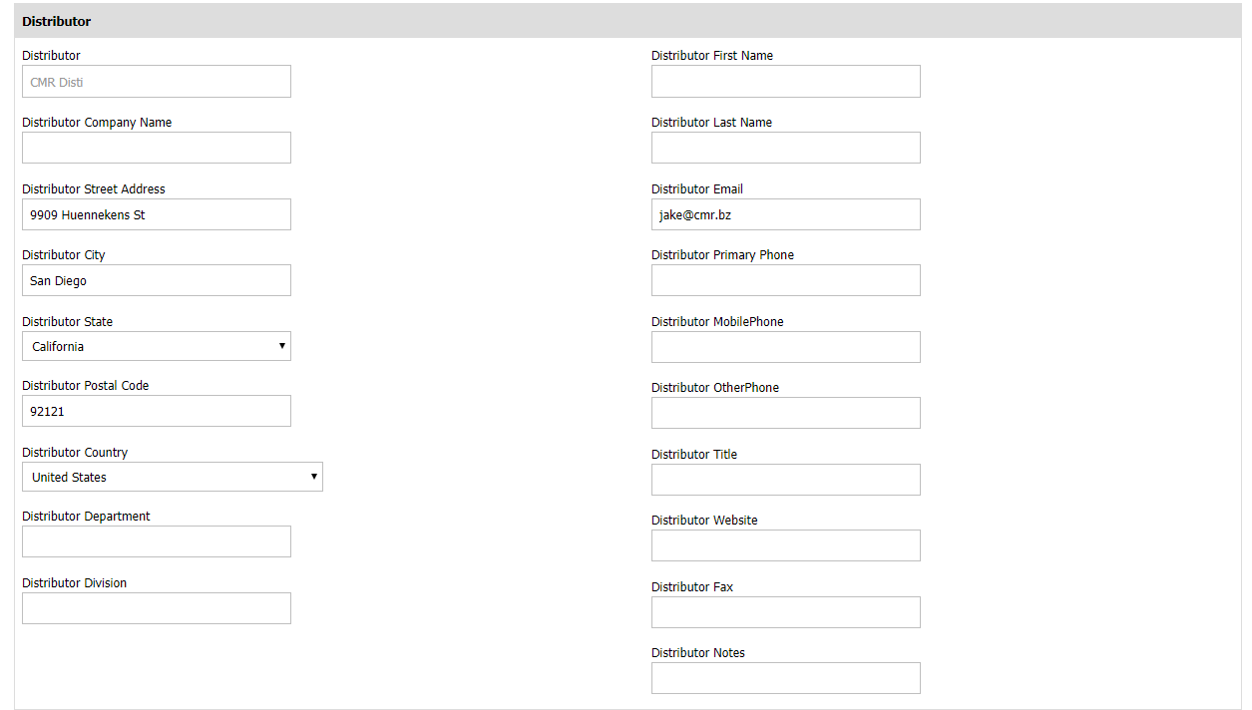
The 3rd sections on the New Opportunity Registration page, you will need to fill in the Distributor information.
The 4th sections on the New Opportunity Registration page, you will need to fill in the End User information.
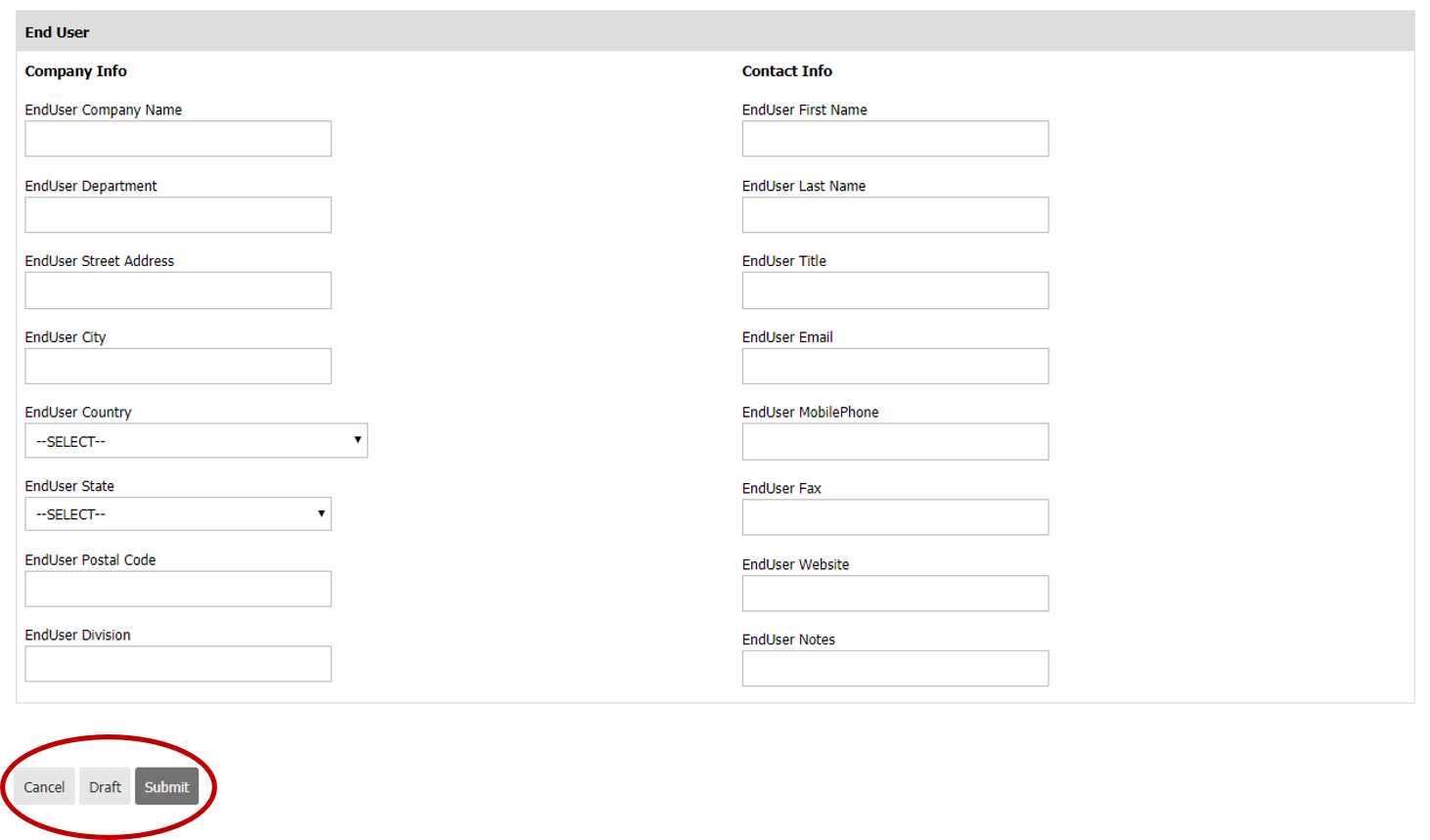
Once you have completed all sections you can save the New Opportunity Registration form as a Draft, Cancel the registration, or Submit the registration for Red Lion to Review!
The registration will now show up under your Deal Registration home page.
If you ever want to go back into one of the registrations, click the link under the identification number:
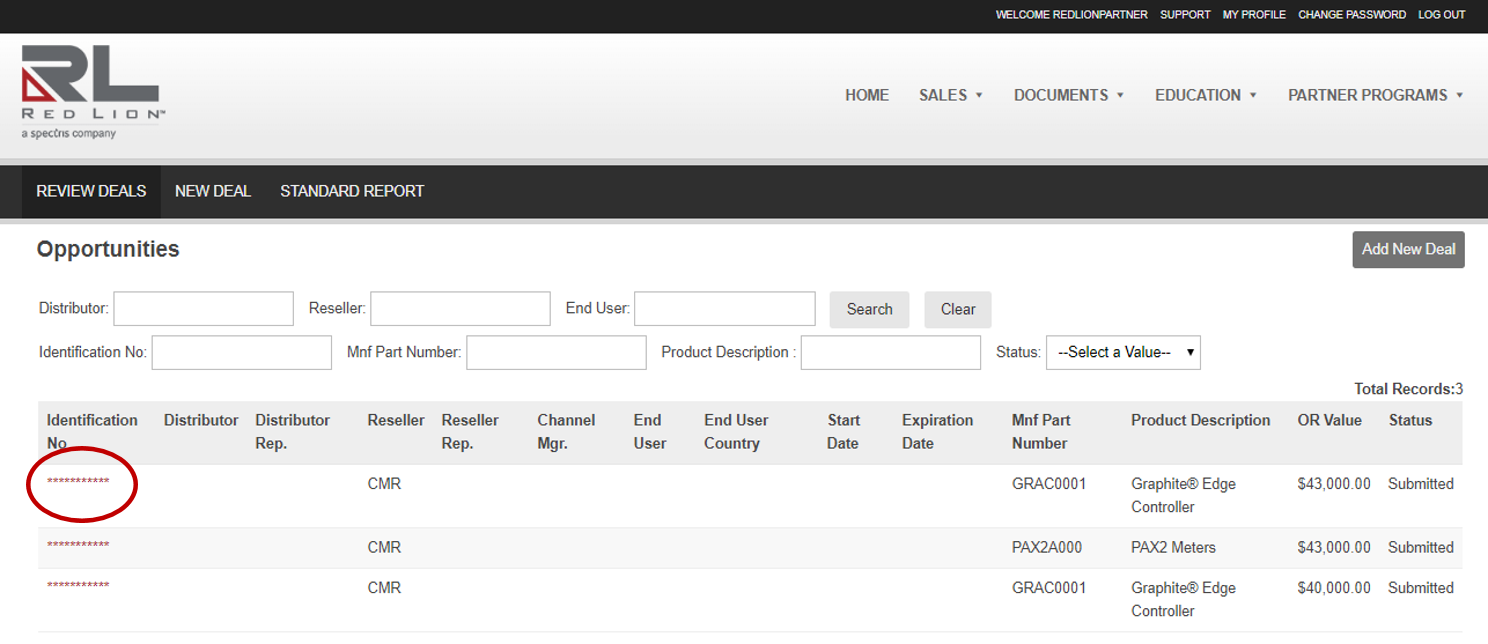
This will take you back to the New Opportunity Registration page form you filled out for your review. You can edit and resubmit the form from there. If you resubmit, you will have to go through the approval process again.